Quick answer
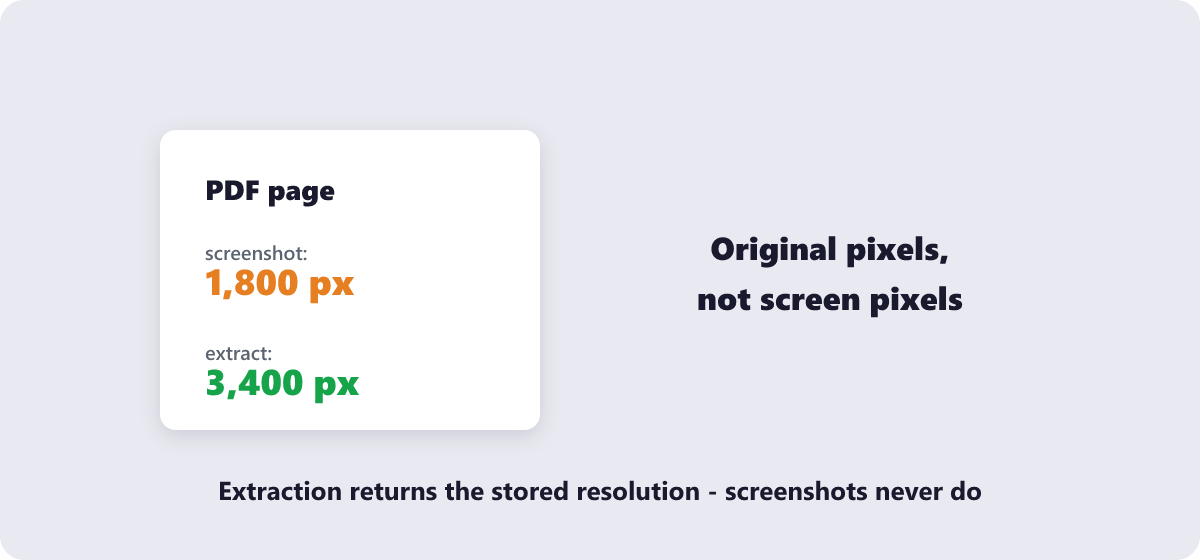
Screenshot-free method: open the free Extract Images tool, drop the PDF in, and every embedded photo, logo and chart is pulled out at its original stored resolution — download them individually or as one ZIP. Screenshots lose quality; extraction does not.
Someone emails you a beautiful proposal as a PDF and you need the product photos out of it. A designer asks for “the logo from page 3.” You need one chart from a 60-page report for a slide. The instinct is to screenshot — and the instinct is wrong, because screenshots capture your screen’s resolution, not the image’s. Extraction gives you the original pixels. Here is how it works and when each approach makes sense.
What’s covered:
- Why extraction beats screenshots
- Extracting every image in one pass
- Getting just one image out
- The scanned-PDF exception
- What people actually use extracted images for
- Image extraction questions
Why extraction beats screenshots
A PDF stores its images as complete files — the same JPG or PNG data that was placed there at creation, often at print resolution. When you extract, you receive that stored data untouched: a 3000-pixel photo comes out as a 3000-pixel photo. A screenshot, by contrast, captures whatever your screen is showing at whatever zoom you happened to be at, re-compressed by your screenshot tool — typically 1500–2000 pixels wide, with the PDF’s page furniture (text, borders) baked in around your crop.
The difference matters most for reuse: printing, editing, re-uploading to a site that checks resolution, or zooming into detail. For a quick reference thumbnail, a screenshot is fine. For anything that must look sharp, extract.
Extracting every image in one pass
The free Extract Images tool automates the whole thing:
- Drop the PDF in, or click Choose Files. Processing runs in your browser — the document never leaves your device.
- The tool scans every page and lists all embedded images: photos, logos, charts, background graphics — including small ones easy to miss manually.
- Select what you need and download individually, or take the whole set as one ZIP.
Everything comes out at its original stored resolution, with no recompression added by the extraction itself. A 2400-pixel product shot goes back into your hands as a 2400-pixel product shot.
Getting just one image out
For a single image, extraction is still the cleanest route — run the PDF through, pick your image from the results, ignore the rest. But two alternatives exist, and it is worth knowing their trade-offs:
- Right-click copy (some viewers). Desktop PDF readers sometimes let you copy an embedded image to the clipboard. Works occasionally, depends on how the PDF was built, and often pastes at reduced quality.
- Crop a screenshot. Fast, universal — and the quality ceiling is your screen. Fine for a reference image; wrong for anything you will reuse.
| Method | Resolution | Effort | Best for |
|---|---|---|---|
| Extraction tool | Original stored pixels | Seconds, all images at once | Reuse, print, quality matters |
| Viewer copy-paste | Varies | Depends on viewer support | One quick image, right viewer |
| Screenshot + crop | Screen resolution | Manual per image | Reference thumbnails only |
The scanned-PDF exception
Scanned documents break the rules in a specific way: each page is saved as one large photograph of the whole page. Extracting from a scan gives you page-sized images — the full scan, text and all — not individual objects within it. If you need the text, you need OCR (not extraction); if you need the page images themselves, extraction works perfectly.
The same logic explains empty results on some modern PDFs: documents generated by design tools sometimes draw logos and charts as vector graphics rather than embedded images, and vectors are drawn, not stored — there is nothing to extract. If a visually rich PDF returns few or no images, its graphics are vectors or text, and a page-render tool is the honest fallback.
What people actually use extracted images for
- Reusing brand assets — logos and product shots from press kits and brochures, at the resolution they were delivered in.
- Reports into slides — pulling the one chart that matters without re-rendering it.
- Evidence and records — photos embedded in inspection reports or listings, kept as standalone files.
- Cleanup — stripping heavy images out before compressing a PDF, which pairs directly with the Compress PDF and Compress Image tools.
One rights note worth stating plainly: extraction is a technical capability, not a license. Images inside a PDF belong to whoever owns them — pulling out a photographer’s work for your own marketing is the same as copying it any other way. Extract from documents you have the rights to reuse from.
Image extraction questions
How do I extract images from a PDF without losing quality?
Use a dedicated extraction tool instead of screenshots. Extraction pulls the embedded image data at its stored resolution — no rescaling, no recompression. The free Extract Images tool processes the whole document at once and hands you the originals.
Why did my PDF return no images?
Two usual reasons: the graphics are vector drawings (drawn by the viewer, not stored as image files), or the PDF is text-only. Vector graphics cannot be extracted as images — render the page instead.
What resolution are extracted images?
Their stored resolution — whatever was embedded at creation. Photos in print-oriented PDFs are often 2000–4000 pixels wide; web-generated PDFs may embed smaller images. Extraction never upscales or downscales.
Can I extract images from a scanned PDF?
You can, but each page is one full-page image — you get page pictures, not individual objects. For the text on those pages you need OCR; for the page images themselves, extraction is exactly right.
Is extracting images from a PDF legal?
Technically yes; legally it depends on the rights. You own the documents you extracted from, not necessarily their contents. Reuse brand assets and stock imagery only where the license or the owner allows it.
Is it safe to extract images from confidential PDFs?
With a browser-based tool, yes — the file is processed locally and never uploaded. Check that the tool states local processing before running confidential material through it.
Last updated: September 19, 2026. The Extract Images tool here is free, runs in your browser, and needs no account.
