Quick answer
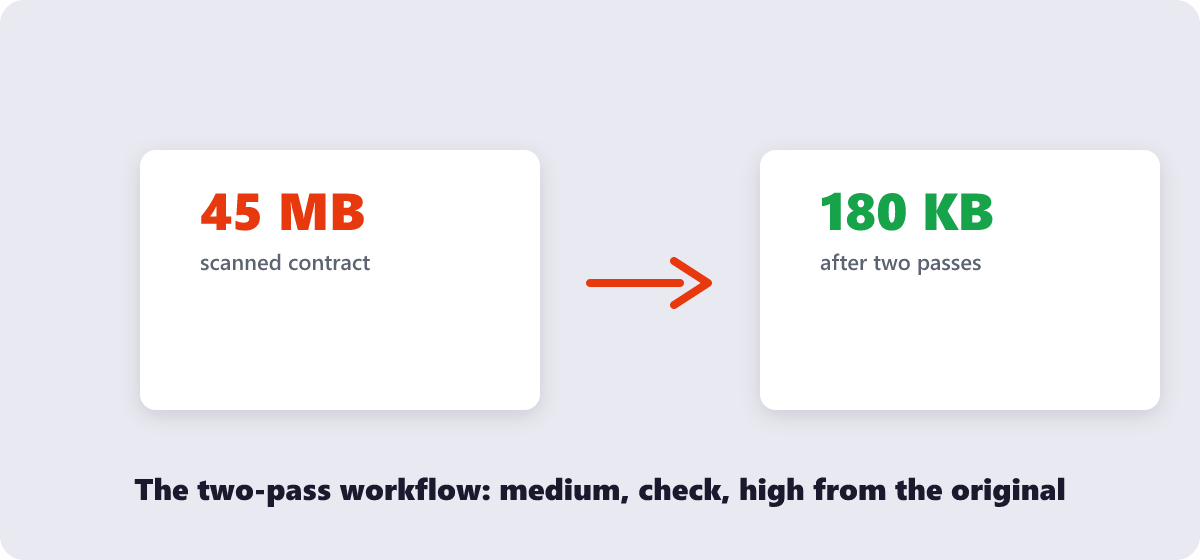
No tool can hit an exact size in one click — anyone promising that is guessing. The reliable way: compress your PDF with the free Compress PDF tool at medium, check the size, and if it is still over the limit, compress the original again at high. Two passes usually land under 100–200 KB for text documents. Details and shortcuts below.
Upload forms love demanding specific numbers: “resume must be under 200 KB”, “portfolio under 1 MB”, “scan below 500 KB”. And unlike photo editors, almost no PDF tool — ours included — offers a type-a-number target size. That is not laziness: compression is lossy, so the honest way to hit a target is iteratively. Here is the workflow that actually works, plus what to do when compression alone cannot get you there.
What’s covered:
- Why there is no “compress to exactly 100 KB” button
- The two-pass workflow that hits size targets
- Cut weight before you compress: the prep step
- Realistic outcomes by document type
- When compression is not enough: nuclear options
- Size-target questions
Why there is no “compress to exactly 100 KB” button
Compression works by re-encoding the heavy parts of a PDF — mostly embedded images — at a chosen quality level. How much that shrinks the file depends entirely on what is inside: a text-only contract might drop 80%, while a scanned certificate barely moves because it is already one big photo. A tool cannot promise “100 KB” without either lying or destroying your document on the first try.
The professional tools solve this honestly: Sejda exposes image quality and resolution sliders (its standard mode re-encodes images at 65% JPEG quality, with resolution options from 72 to 300 PPI); ours offers low, medium and high levels. You choose the aggression, check the result, and adjust. That feedback loop is the target-size feature — just spread over two clicks.
The two-pass workflow that hits size targets
- Pass one — medium. Run the PDF through the free Compress PDF tool at medium and look at the result size. Many text-heavy documents already land under 200 KB here.
- Still over? Pass two — high, from the original. Compress the original file again at high. Never re-compress the compressed output; stacking lossy passes is how documents become smudges.
- Still over? The file is image-dominated — skip ahead to the prep step, because no compression level will rescue a 40 MB scan bundle.
Keep every original. The whole workflow depends on always compressing from the source file, so make a folder for originals before you start.
Cut weight before you compress: the prep step
If your PDF is mostly pictures (scans, photo attachments, screenshots), compression alone fights a losing battle. Shrink the source images first:
- Extract or collect the images, then run them through the free Compress Image tool. For on-screen reading, images rarely need more than 1500 pixels on the long edge.
- Rebuild the PDF from the slimmed images with Image to PDF.
- Now run one medium compression pass on the result — the combination routinely beats what a single high pass achieves on the original.
This order matters because image resizing removes pixels before compression, instead of asking the compressor to cleverly delete detail a scanner shouldn’t have captured in the first place.
Realistic outcomes by document type
| Document type | Typical starting size | After medium compress | Under 100 KB? |
|---|---|---|---|
| Text-only CV or letter (2–4 pages) | 80–300 KB | 50–150 KB | Usually yes |
| Contract with a scanned signature page | 1–6 MB | 300 KB–2 MB | Only after image prep |
| Photo portfolio (10+ pages) | 15–60 MB | 3–15 MB | Realistically no |
| Scanned document bundle | 10–80 MB | 2–20 MB | After heavy image prep |
Treat the numbers as direction, not promises — content mix changes everything. What holds true in every case: text documents compress dramatically, image documents compress reluctantly, and the prep step decides the outcome for anything photo-heavy.
When compression is not enough: nuclear options
If the document still will not fit, one of these will — each with a cost you should accept knowingly:
- Re-scan smarter. 200 DPI, grayscale instead of color, and text-mode settings produce a fraction of a 300 DPI color scan’s weight. Rescanning beats rescuing a bloated scan.
- Split the file. If only one section is heavy, the Split PDF tool lets you send just the required pages under the limit and the rest separately.
- Grayscale the images. Color information is pure weight in scanned documents; our compressor’s high setting plus grayscale conversion on image-heavy scans routinely halves files that “won’t compress.”
- Reduce the page count. When a portal wants “one PDF under 200 KB” and your 30-page pack cannot fit, the requirement is really asking for the essential pages — Delete PDF Pages the rest.
One honest warning about the last option: re-compressing the same file over and over does not converge on 100 KB — it converges on an unreadable document. Compression removes information; after two or three passes from the same original, the remaining size is mostly irreducible structure. That is the signal to change the inputs, not to push the slider harder.
Size-target questions
Can I compress a PDF to exactly 100 KB?
Not exactly — no honest tool offers that, because compression results depend on content. Compress at medium, check the result, and re-compress the original at high if needed. For text documents, the two-pass workflow typically lands under 100–200 KB.
Why is my scanned PDF so hard to compress?
A scan is one big photograph per page. Compression re-encodes that photo at lower quality, but the weight stays large because the page is an image. Rescan at 200 DPI grayscale, or run the pages through image compression first, for real reductions.
Does compressing to a small size hurt readability?
Text rarely suffers — compression spends its budget on images. At high settings, photographs and fine graphics soften first. Always open the compressed file and check the most detailed page before submitting it.
How small does a PDF need to be for email?
Most email providers accept attachments up to 20–25 MB, but recipients’ mailboxes and corporate filters are often stricter. For anything important, staying under 10 MB — and under 1–2 MB for single documents — avoids virtually every ceiling.
Is compressing a PDF safe for confidential documents?
With a browser-based tool, yes: the file is processed on your own device and never uploaded. Verify the tool states local processing before running contracts or ID scans through it.
Can I compress several PDFs to the same size in one go?
You can batch-compress multiple files in one session, but each file compresses by its own percentage — there is no shared target. Sort the results by size afterward and re-process any that missed the limit.
Last updated: September 19, 2026. The Compress PDF tool here is free, runs in your browser, and has no signup or daily limits.
