Quick answer
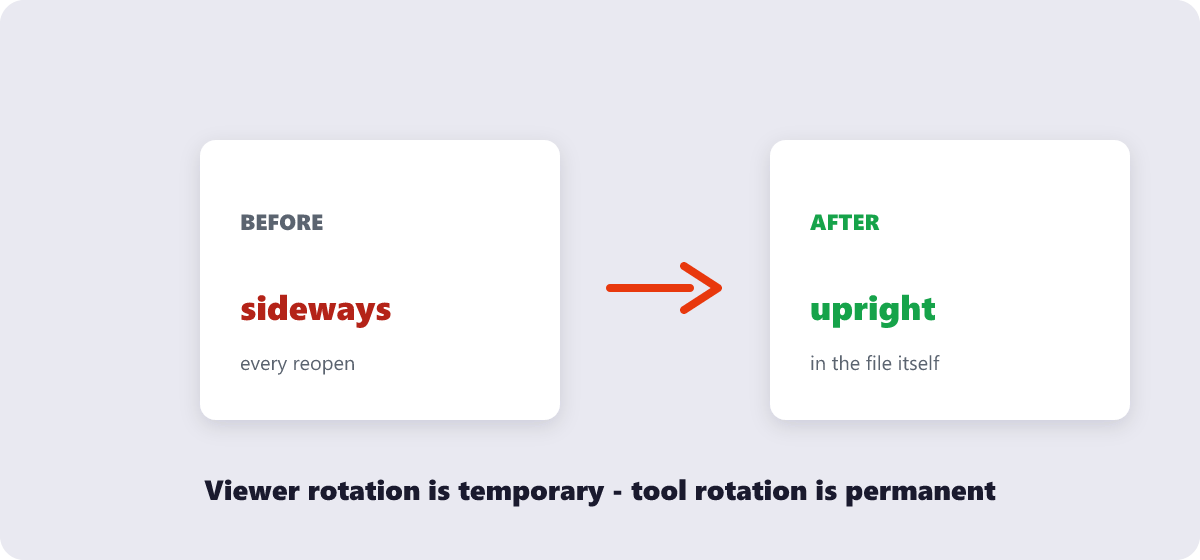
The viewer’s rotate button is temporary — it resets every time the file is reopened. To rotate permanently, use the free Rotate PDF tool: pick the pages, turn them 90°, 180° or 270°, and download a new file with the correction baked in. Mac users can also do it in Preview; details below.
Every scanned document seems to arrive with at least one page lying on its side. And every PDF viewer has a rotate button — which is exactly why the confusion lasts for years: you rotate, it looks right, you close the file, and the next time you open it everything is sideways again. Here is the difference between the two kinds of rotation, and how to make the fix permanent on any device.
What’s covered:
- The two kinds of rotation (why yours resets)
- Permanent rotation with the online tool
- Mac: Preview’s built-in permanent rotate
- 90°, 180° or 270° — picking the right turn
- Rotating on your phone
- Rotation questions
The two kinds of rotation (why yours resets)
Viewer rotation is what Adobe Reader, browser tabs and most apps offer: it spins the display and remembers the choice in your viewer’s settings or session — but writes nothing into the file. Send that sideways-then-rotated PDF to someone else and it arrives sideways, because the file itself never changed.
Permanent rotation rewrites the page definitions inside the PDF so every page carries its new orientation in the file itself. Anyone, on any device, in any viewer — including a printer — sees it upright. That is what “save the rotation” should mean, and it requires a tool that produces a new file rather than a display preference.
This distinction is the single most common rotation complaint (a quick search of any PDF forum finds dozens of “why does my rotation not save” posts). Once you know which kind you are using, the mystery disappears entirely.
Permanent rotation with the online tool
- Open the free Rotate PDF tool and drop the file in. Processing runs in your browser — nothing is uploaded.
- Rotate individual pages or the whole document in 90° steps, left or right, as many turns as needed. The preview shows each page as it will be saved.
- Apply and download the new file. The orientation is now part of the page data — it survives reopening, sharing, printing and uploading.
Because rotation only rewrites orientation flags — no re-encoding of content — quality is untouched and the file size barely changes. Text stays selectable, images stay sharp.
Mac: Preview’s built-in permanent rotate
Mac users have a native option that does the permanent version properly: open the PDF in Preview, select the page in the sidebar, and press Cmd+L (rotate left) or Cmd+R (rotate right). Then File → Save — Preview writes the change into the file. It even rotates a single page out of a whole document without touching the others, which makes it the fastest fix for one stubborn scanned page.
Windows has no equivalent built into its default apps — the browser-and-tool route above is the standard recommendation there, and honestly it is quicker than opening Acrobat for a two-page fix.
90°, 180° or 270° — picking the right turn
| Symptom | What happened | Fix |
|---|---|---|
| Page reads sideways, top to the left | Scanned or exported 90° off | Rotate 90° right (or left — try one, preview tells you) |
| Page is upside down | 180° flip, common with duplex scanners | Rotate 180° |
| Every second page is upside down | Double-sided scan flipped alternate pages | Rotate those pages 180° individually |
| Mixed orientations across pages | Pages fed into the scanner at different angles | Per-page rotation in the tool |
That last row is the hidden time-saver: per-page rotation means one pass fixes a whole mixed-orientation scan, instead of splitting the file, fixing halves and re-merging.
Rotating on your phone
Phone viewers have the same temporary-rotation trap as desktops. The mobile pattern that works: open the free Rotate PDF tool in your phone’s browser, rotate, download — the corrected file lands in your Files app, ready to forward. On iPhone there is also a native option: the Files app can mark up and rotate PDFs, and saving writes it permanently.
Rotation questions
Why does my rotated PDF go back to sideways?
Because the viewer only rotated the display. Use a tool that saves a new file — the orientation then lives inside the PDF itself.
Does rotating a PDF reduce its quality?
No. Rotation rewrites orientation metadata — content is not re-encoded, recompressed or redrawn. File size stays effectively identical.
Can I rotate just one page of a multi-page PDF?
Yes. Select that page in the Rotate PDF tool, turn it, and download — the other pages keep their orientation.
Will rotated pages still print correctly?
Yes — and better than before. Printers follow the file’s stored orientation, so a permanently rotated page prints upright instead of requiring the print dialog to guess.
How do I rotate a scanned PDF with mixed page orientations?
Per-page rotation handles it: turn each sideways or upside-down page individually in one session, then download the corrected document as a whole.
Is rotating a PDF the same as flipping it?
No. Rotation turns the page around its center; flipping mirrors it. Orientation fixes need rotation — mirrored content requires a different kind of edit entirely.
Last updated: September 19, 2026. The Rotate PDF tool here is free, runs in your browser, and saves the rotation permanently into the file.
