Quick answer
If you know the password, removing it is legitimate and takes a minute: open the free Unlock PDF tool, enter the password once, and download a copy that opens like any normal PDF. This works only on files you’re authorized to access — it is not a cracking tool, and that distinction matters.
A PDF you own but cannot print. A file from a former employer that opens but refuses every edit. A form your accountant locked and then lost the password to. Password-protected PDFs generate an enormous amount of frustration — and an equal amount of confusion, because “locked” means two completely different things. This guide separates the two, shows the legitimate way to remove each, and draws the line this tool will not cross.
What’s covered:
- The two kinds of PDF locks
- How unlocking works, step by step
- The line: authorized files only
- What to do when you actually forgot the password
- Unlocking questions
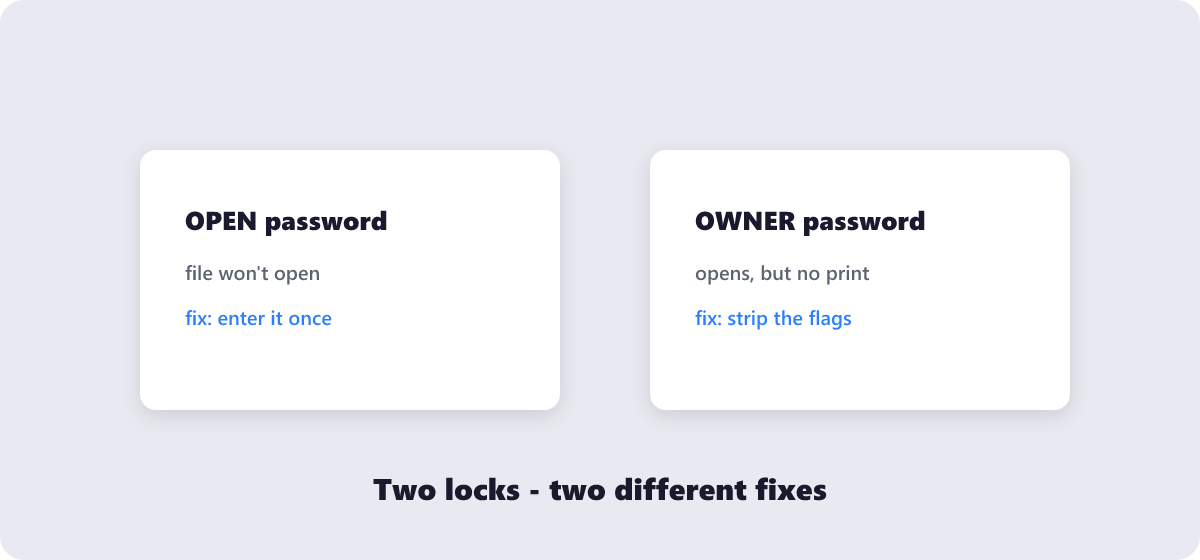
The two kinds of PDF locks
| Lock type | What it does | Removing it legitimately |
|---|---|---|
| Open password (user password) | The file will not even open without it | Enter the password once in an unlock tool — it decrypts and saves a clean copy |
| Permissions password (owner password) | The file opens fine but blocks printing, copying text or editing | An unlock tool strips the restriction flags — no password needed for this type |
The permissions lock is the one that generates the most confusion: the document opens perfectly on screen, you can read every word, but Print is grayed out and text selection does nothing. That is an owner password — a policy the file carries — and removing it from a document you are authorized to use is a routine operation.
How unlocking works, step by step
- Open the free Unlock PDF tool and drop the locked file in. Processing runs in your browser — the file and its password stay on your device.
- If the file has an open password, type it once. Owner-locked files that open normally skip this step.
- Run the unlock. The encryption is lifted, and restrictions on printing, copying and editing go with it.
- Download the clean copy — it now opens, prints and edits like any ordinary PDF.
One important behavior to understand: unlocking produces a new file. The original stays exactly as locked, so distributing the locked version and keeping the unlocked one for your own use remains possible — and sometimes wise.
The line: authorized files only
This is where honesty matters more than marketing. Unlocking a PDF is legitimate when you have the right to access the document: you created it, it was sent to you, you own it, or the owner asked you to remove the lock. Every unlock tool works only when the open password is supplied — because that password is the authorization proof for files that are fully encrypted.
What no reputable tool does: crack unknown passwords. Brute-force guessing someone else’s protected documents is a different activity entirely — illegal in most jurisdictions under computer-misuse and copyright law, and outside the scope of any legitimate tool. If a file’s owner will not give you the password, the answer is to ask the owner, not the internet.
My honest opinion: the permissions lock is overused and under-explained. Locking printing on a user manual helps nobody; locking a client’s contract so it cannot be edited by accident helps everybody. Lock the right things for the right reasons, keep a record of passwords you set, and most “unlocking” needs never arise.
What to do when you actually forgot the password
An open password you set and then forgot is genuinely unrecoverable by legitimate means — strong PDF encryption cannot be responsibly bypassed, and any service claiming “instant password recovery” is either lying or offering a brute-force attack that may take centuries on a strong password and is not something to hand confidential files to.
The realistic recoveries, in order of usefulness: check your password manager’s history; ask whoever sent you the file to resend it unlocked or share the password again; if it is your own exported file, re-export it from the original application (the source document usually has no password even when the export did). Prevention beats recovery: store PDF passwords where you store every other password.
Unlocking questions
Is removing a PDF password legal?
Yes, when you own the file or have the owner’s permission. Unlocking documents you are not authorized to access is illegal in most jurisdictions, regardless of the tool used.
What is the difference between an open password and a permissions password?
An open password is required to open the file at all; a permissions password lets the file open but restricts printing, copying or editing. Unlock tools handle both — the first needs the password entered, the second can often be stripped directly.
Can this tool crack a password I don’t know?
No — and that is by design. Unlocking requires the password for encrypted files; there is no guessing, brute-forcing or bypassing. It is a legitimate-access tool, not a cracking service.
Will the unlocked PDF work exactly like a never-locked one?
Yes. After unlocking, the file opens, prints, copies and edits like any ordinary PDF — the security settings are gone, the content is untouched.
Does unlocking change the document’s content or quality?
No. Unlocking modifies only the security layer. Pages, text, images and formatting are byte-for-byte as they were.
Is it safe to unlock confidential PDFs with an online tool?
With a browser-based tool, yes — the file and its password are processed on your own device and never sent to a server. Verify the tool states local processing before handing over anything sensitive.
Last updated: September 19, 2026. The Unlock PDF tool here is free, runs in your browser, and works only on files you’re authorized to access.
