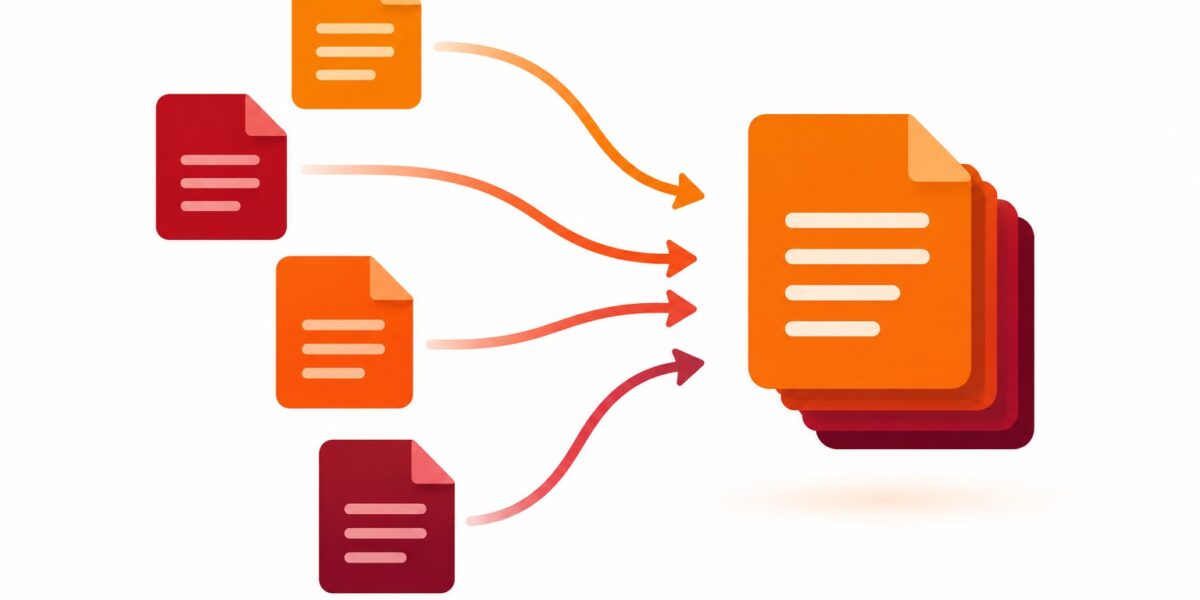
You’ve got three signed forms, a cover letter, and a scanned ID — and the application portal wants exactly one file. Or you’re closing out a project and need to hand over a dozen separate reports as a single, properly ordered document. Merging PDFs is one of those tasks that everyone runs into eventually, and it trips people up more than it should, mostly because they’re not sure what actually happens to their files in the process.
Quick answer
Merging never touches the content inside your PDFs — pages are appended in order, with nothing re-encoded or redrawn. Use the free Merge PDF tool: drop your files in, drag the thumbnails into order, and download one document.
What’s covered:
- What Actually Happens When You Merge PDFs
- When You’d Actually Want to Merge PDFs
- How to Merge PDF Files, Step by Step
- Getting the Order Right the First Time
- After Merging: Two Optional Cleanup Steps
- A Note on Mobile
- Frequently Asked Questions
Short version: merging is one of the safest things you can do to a PDF. Here’s the full picture.
What Actually Happens When You Merge PDFs
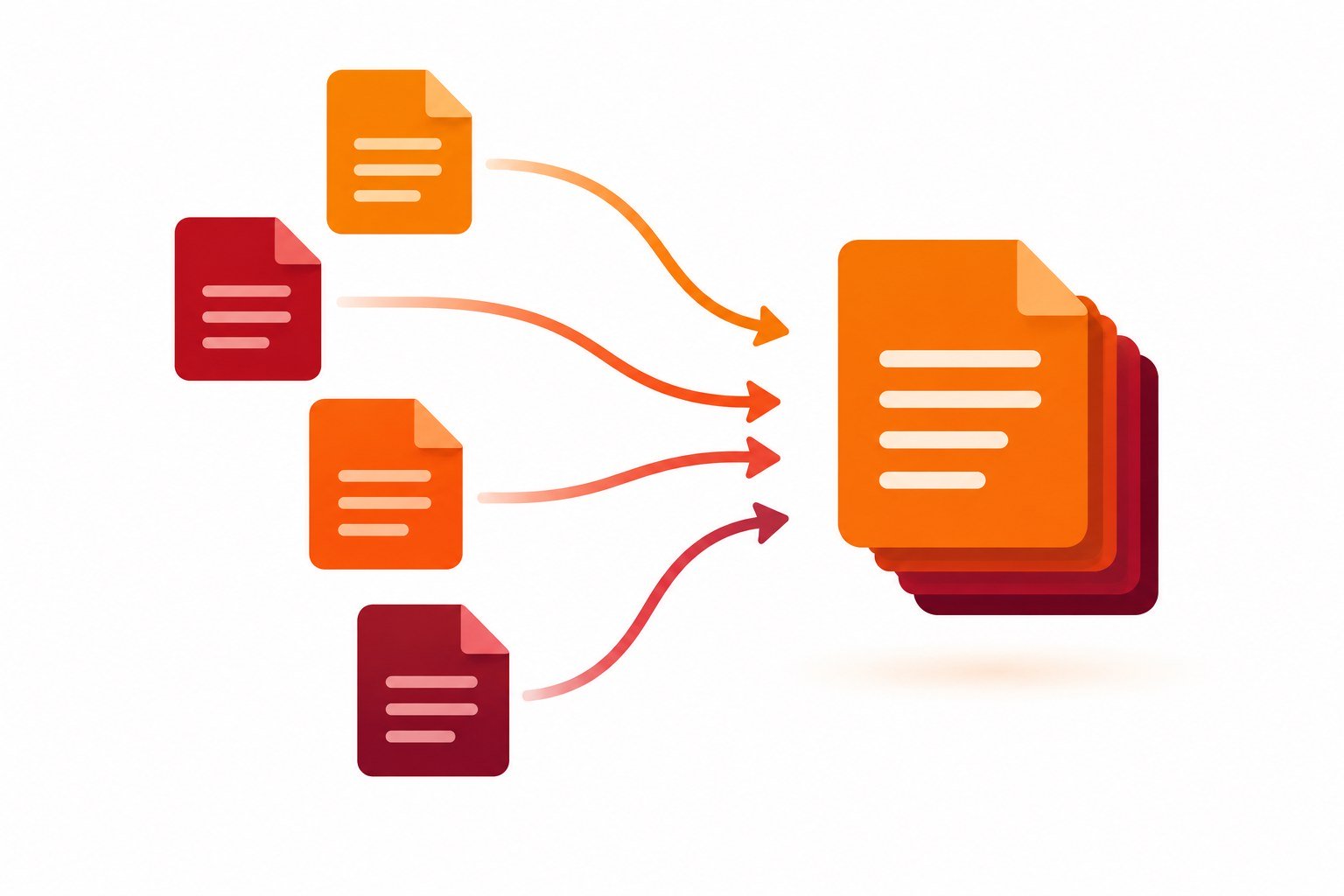
It helps to know that merging isn’t really “conversion” in any meaningful sense — it’s closer to stapling. Each PDF’s pages get appended into a new document in the order you choose, with nothing re-encoded, recompressed, or redrawn along the way. Text stays text. Images stay at their original resolution. Fonts embed the same way they did in the source files.
That’s worth knowing because it means merging carries basically none of the quality trade-offs you’d worry about with compression or format conversion. The only thing that changes is the page order and the file boundary — everything inside each page is untouched.
When You’d Actually Want to Merge PDFs
A few situations come up constantly:
- Combining a cover letter, resume, and references into one application file
- Assembling scanned pages from a multi-page document you scanned one sheet at a time
- Putting together a report where each section was written or exported separately
- Bundling signed contracts, IDs, and supporting documents for a single submission
- Archiving a year’s worth of invoices or statements into one file per year instead of dozens of loose ones
The common thread: whoever’s receiving the file wants one thing to open, not a folder of six.
How to Merge PDF Files, Step by Step
Here’s the process with our Merge PDF tool. Everything runs locally in your browser, so your files are never uploaded anywhere — which matters if some of what you’re combining is sensitive.
- Open the Merge PDF tool and add all the files you want to combine — drag them in together, or add them one at a time.
- Drag the file thumbnails into the exact order you want the final document to read in. This is the step people skip and regret.
- Double-check the order in the preview — it’s much easier to fix now than after downloading.
- Click merge and let it combine the files, which takes a moment since it’s processing locally rather than queueing on a server.
- Download the combined PDF and open it once to confirm everything landed where you expected.
That’s the entire process — no account, no software, and it works the same on a phone as it does at a desk.
Getting the Order Right the First Time
The single most common merging mistake isn’t a technical one — it’s ending up with page four before page two because the files were dragged in without a second look. A couple of habits fix this:
Name your source files with numbers before you start (01-cover-letter.pdf, 02-resume.pdf, and so on). Most merge tools, including ours, will let you sort by filename as a starting point, which saves you from manually dragging everything from scratch. Then still take the ten seconds to visually confirm the order in the thumbnail view before merging — it’s the cheapest insurance available.
If you’re combining scanned photos rather than existing PDFs — say, several phone photos of a signed document — convert them to PDF pages first with Image to PDF, then bring the resulting file into the merge alongside your other PDFs. Trying to merge a mix of image files and PDFs directly doesn’t always work cleanly, so converting images to PDF pages first is the more reliable order of operations.
After Merging: Two Optional Cleanup Steps
Trim anything unnecessary. Merged documents often end up with a duplicate cover page or a blank sheet from one of the source files. Our page organizer lets you drop those pages after the fact without redoing the whole merge.
Check the size. Combining several files naturally adds their sizes together, and if a couple of the source PDFs were image-heavy, the merged file can end up too large for an email attachment or upload limit. If that happens, run it through Compress PDF afterward — compressing once, after merging, is more efficient than compressing each file separately beforehand.
A Note on Mobile
Merging works the same on a phone browser as it does on a laptop — there’s nothing to install. The one adjustment worth making on a small screen: reordering by drag-and-drop is fiddlier with a thumb than a mouse, so it’s worth zooming in on the thumbnail strip before you commit to the final order.
| Route | Order control | Works offline | Best for |
|---|---|---|---|
| Online tool | Drag thumbnails | No | Most merges — visual, precise |
| Desktop app | Full | Yes | Huge or confidential files |
| Phone print trick | Limited | Yes | One or two quick files |
Frequently Asked Questions
Does merging PDFs reduce their quality?
No. Merging appends pages as they are — text, images, and formatting all carry over exactly as they appeared in the original files, since nothing is being re-encoded.
Is there a limit to how many PDFs I can merge at once?
There’s no fixed cap — you can combine as many files as your browser and device can comfortably handle in a single session. For most people that’s well beyond what they’d ever actually need to merge.
Can I merge a password-protected PDF?
You’ll typically need to remove the password first, since a locked file can’t be read and combined with others. Unlock it, merge it, and re-apply protection to the final combined file afterward if you still want it locked.
Can I merge PDFs that have different page sizes?
Yes. Each page keeps its own original size in the merged document — you can freely combine a mix of Letter, A4, or oddly sized pages into one file without them being forced to match.
Is it safe to merge documents with personal information?
Yes, as long as the merge happens locally in your browser rather than being processed in your browser — which is how our Merge PDF tool works, so your files never leave your device.
Will bookmarks or a table of contents carry over after merging?
Page content and formatting carry over fully. Bookmarks and internal links that pointed to specific pages in the original separate files may not automatically update to match their new position in the combined document, so it’s worth checking any internal navigation after merging longer files.
The Bottom Line
Merging is one of the lowest-risk things you can do to a PDF — no quality loss, no format changes, just your files stitched together in the order you choose. Get the order right before you merge, trim anything unnecessary afterward, and you’re done.
Ready to combine your files? Head over to Merge PDF — no signup required.
