Quick answer
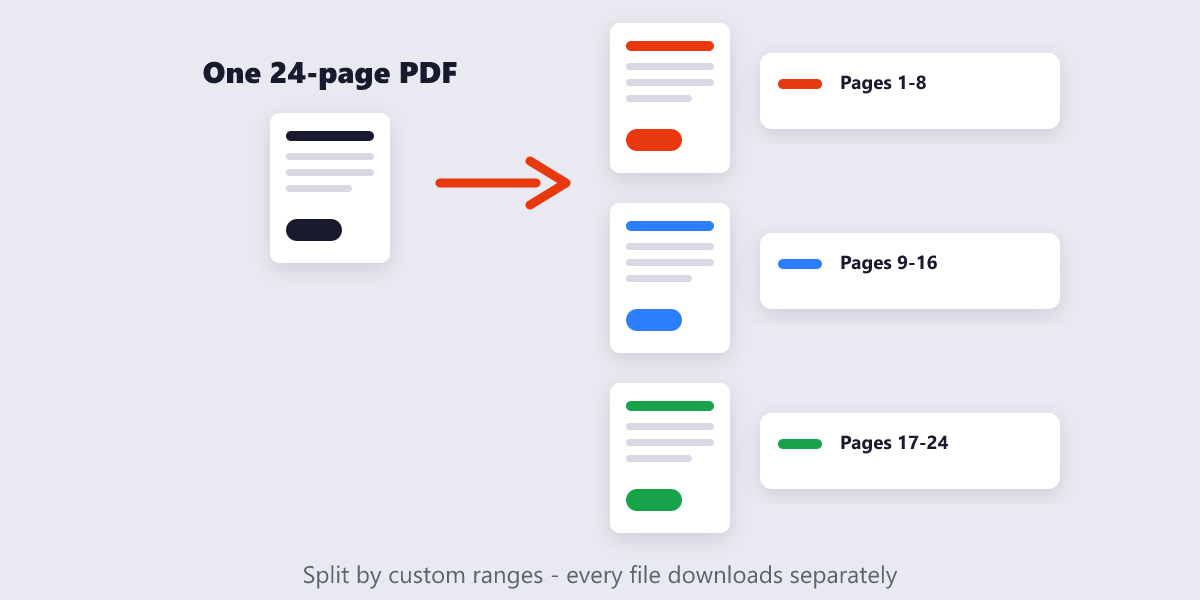
Fastest way: open the free Split PDF tool, drop your file in, and either type custom ranges (like 1-8, 9-16, 17-24) or choose to extract every page as its own PDF. Download the files individually or as one ZIP. Everything runs in your browser — the document never leaves your device.
One big PDF is convenient until it isn’t: the 40-page contract where the client needs only their section, the scanned binder that should be three separate records, the report that must go out chapter by chapter. Splitting a PDF sounds like a job for expensive software, but every method in this guide is free — including ones hiding inside tools you already own.
What’s covered:
- The four splitting jobs (and which method fits each)
- How to split a PDF by custom ranges online
- How to extract a single page from a PDF
- How to burst a PDF into one file per page
- The free desktop way: Preview on Mac
- Splitting private documents safely
- Split PDF: your questions
The four splitting jobs (and which method fits each)
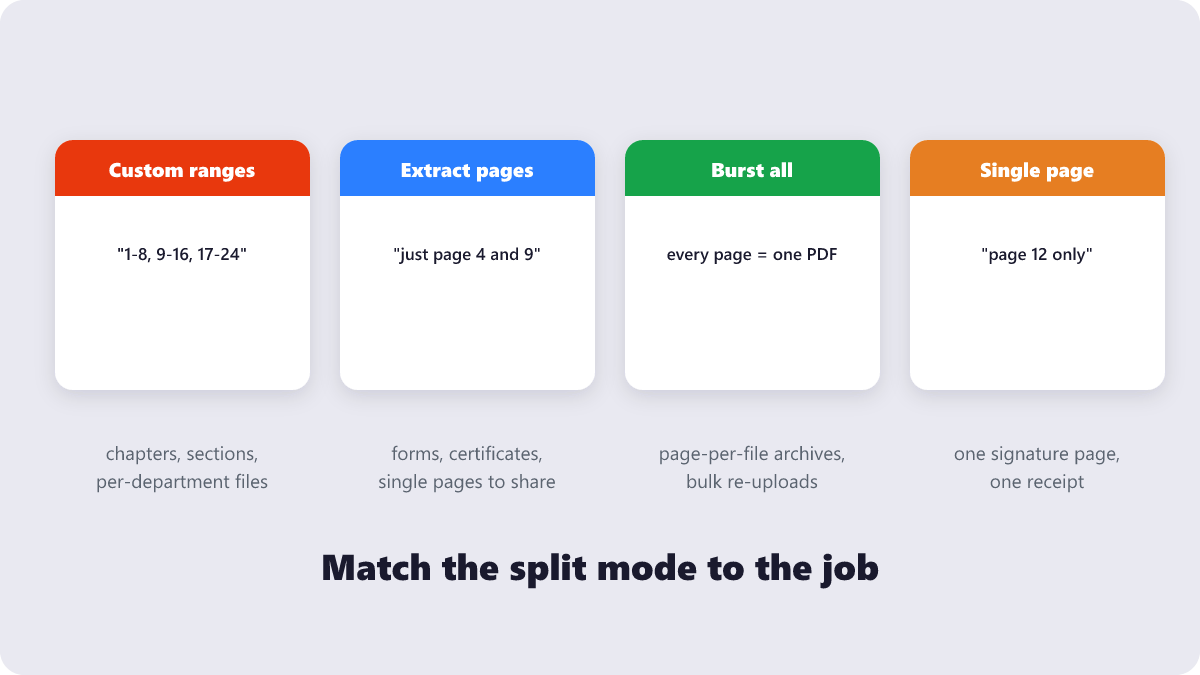
“Split a PDF” actually means four different tasks, and picking the wrong one wastes time:
| Your job | Mode you need | Example |
|---|---|---|
| Break a document into sections | Custom ranges | 1-8, 9-16, 17-24 → three files |
| Pull out a few pages | Extract pages | Just pages 4 and 9 → two files |
| Archive or re-upload page by page | Burst all | 24 pages → 24 single-page PDFs |
| Send one signature page or receipt | Single page | Page 12 only → one file |
How to split a PDF by custom ranges online
This is the route that handles every scenario above, and it takes about a minute:
- Open the free Split PDF tool — no signup, no watermark.
- Drop your PDF in (or click Choose Files). The file is processed in your browser, not uploaded to a server.
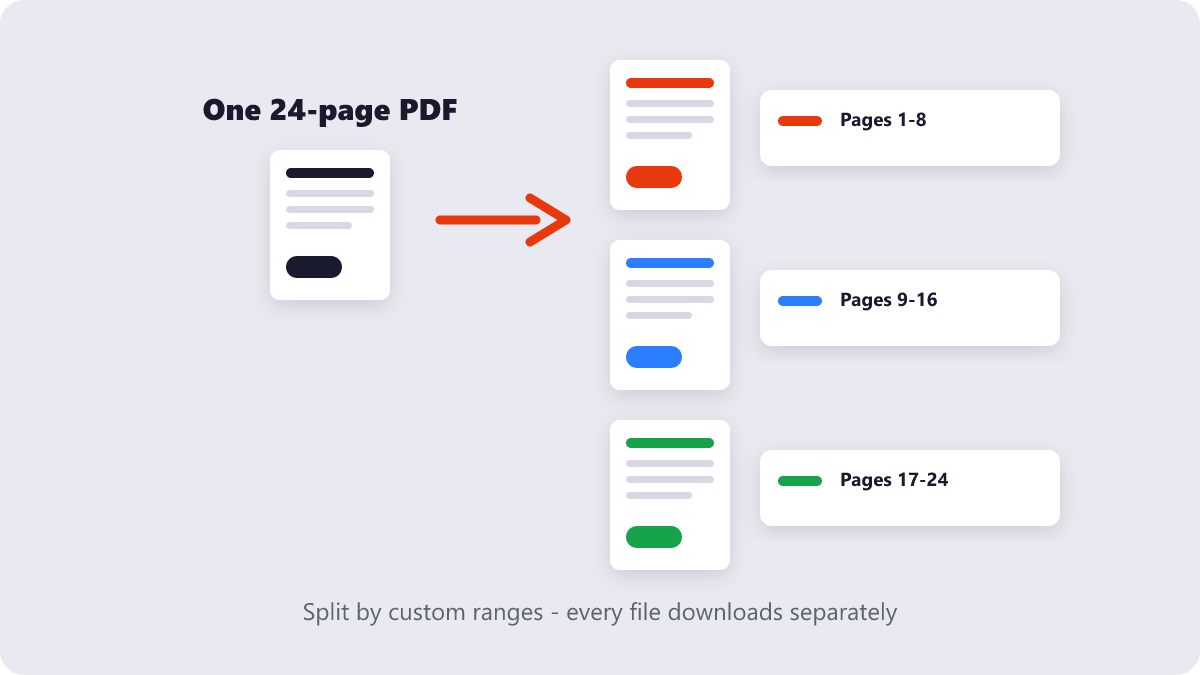
- Type the ranges you want, like 1-8, 9-16, 17-24 — each range becomes its own file. Or choose to extract every page as a separate PDF.
- Run the split and download the results individually or as a single ZIP.
Custom ranges are the workhorse: splitting at natural boundaries (chapters, months, departments) produces files that make sense to whoever receives them. Split a 24-page quarterly pack at pages 9 and 17, and each team gets exactly their section — no “see attached, yours is somewhere in there.”
How to extract a single page from a PDF
When you need exactly one page — a signed consent form, one bank statement — the fastest free route that works on any device is the print dialog:
- Open the PDF in any browser or viewer and press Ctrl+P (or Cmd+P on Mac).
- In the pages field, type just the page number you need, like 12.
- Change the printer to Save as PDF / Microsoft Print to PDF, and print.
You get a fresh one-page PDF of exactly that page. It feels like a trick because it is — but it is a reliable one, and unlike everything else in this guide it needs no internet connection. The trade-off: the print pipeline flattens some interactive elements, so for form-heavy pages use the Split PDF ranges method instead.
How to burst a PDF into one file per page
Bursting — every page becomes its own PDF — is the answer when a receiving system demands one file per page, or when you are building a page-level archive. Choose the extract-every-page option in the Split PDF tool and take the ZIP; a 30-page document becomes 30 clean single-page files in seconds.
Two practical notes from real-world bursting: first, name your original well before you start, because the output files inherit numbering that traces back to it. Second, if the goal is actually to re-upload pages in a different order, you may not need to burst at all — the Reorder PDF Pages tool rearranges inside the same file, and Delete PDF Pages removes what you don’t need.
The free desktop way: Preview on Mac
Mac users have a capable splitter built in. Open the PDF in Preview, show the sidebar with thumbnails, then drag pages out of the sidebar onto the desktop — each becomes its own PDF. You can also select pages, delete the rest, and Save As to keep just a range. It is manual, but for a one-off two-file split on a Mac it is often quicker than opening anything else. Windows has no exact equivalent in its built-in apps, which is why the browser route above is the default recommendation there.
One honest limitation of all desktop-manual methods: they scale badly. The moment a split involves more than a handful of pages, dragging thumbnails around a sidebar loses to typing “1-8, 9-16, 17-24” every time.
Splitting private documents safely
Contracts, medical records, financial statements — splitting often happens to the most sensitive files you own. The privacy question is simply: where does the file go during the split?
Browser-based tools (including the one linked here) process the document on your own device, so a confidential file never leaves your machine. Upload-based services send the file to their servers first; the reputable ones encrypt the transfer and delete files within an hour or two, but that is a trust decision you should make knowingly. For anything you would not hand a stranger, browser-based or offline methods are the default — the same principle covered in the site’s privacy policy.
Split PDF: your questions
How do I split a PDF into multiple files for free?
Open a free split tool, enter custom ranges like 1-8, 9-16, 17-24, and download the results — or extract every page individually. Every method in this guide, including the browser tool and Mac’s Preview, is free.
Can I split a PDF without uploading it anywhere?
Yes. Browser-based split tools process the file on your own device, and Mac’s Preview works fully offline. If a service requires an upload, that is a choice you are making with your document.
Will splitting reduce my PDF’s quality?
No. Splitting copies existing pages into new files — nothing is recompressed or re-rendered. The pages in the split files are pixel-identical to the original.
How do I split a scanned PDF with 100 pages?
The same way — page count does not change the method. Large scans simply take a little longer because every page is a full image; a 100-page scanned file may be hundreds of megabytes, so expect the browser to work for a minute rather than a second.
Can I split a password-protected PDF?
Only if you know the password. Protected files must be unlocked first — with the password — using an unlock tool; after that, splitting works normally.
How do I reverse a split and combine the files again?
Run the split files through a merge tool in the order you want — merging appends pages without quality loss, so you can split and re-merge without degrading the document. Just remember that any bookmarks or form fields from the original may not survive the round trip.
Last updated: September 19, 2026. The Split PDF tool mentioned here is free, needs no account, and processes files in your browser.
