Quick answer
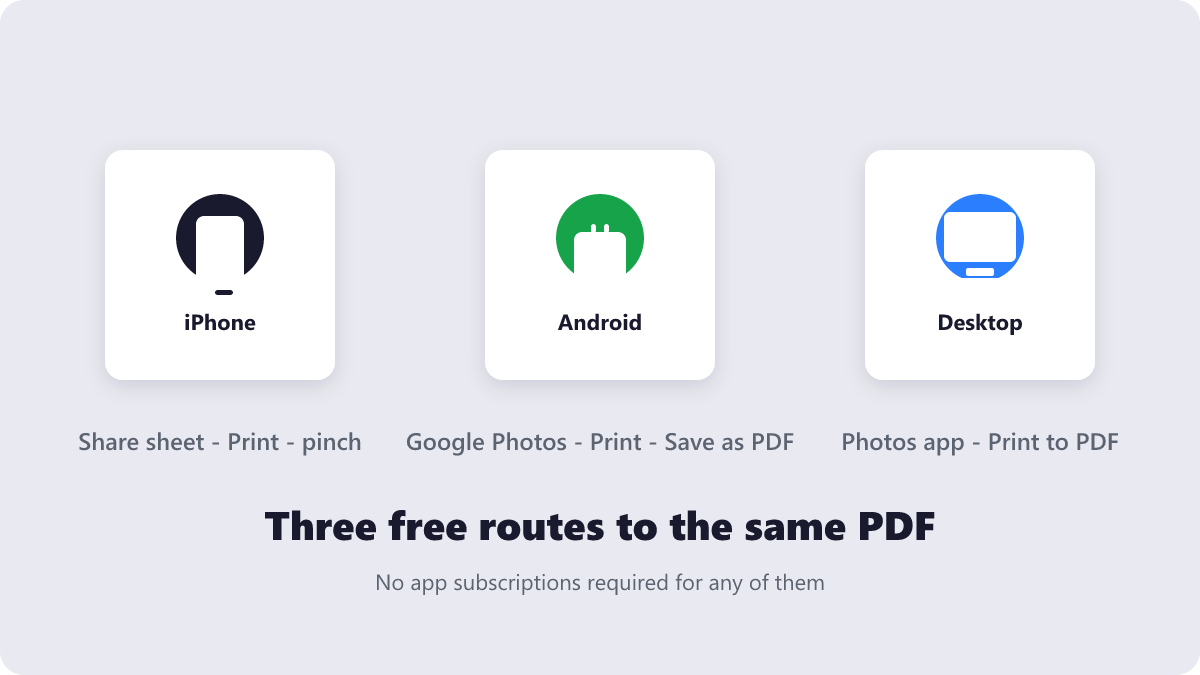
Fastest way: on iPhone, open Photos, select your shots, tap Share, choose Print, then pinch out on the print preview and share the PDF it creates. On Android, select the photos in Google Photos, tap Print, and pick “Save as PDF”. On desktop, print the photos with the “Microsoft Print to PDF” (Windows) or “Save as PDF” (Mac) option. To control page order or hit a file-size limit, a free tool like the Image to PDF converter gives you thumbnails you can drag around.
The job portal wants “one PDF”. The landlord wants scanned receipts in a single file. The school wants homework photos in order, under 5 MB. Turning photos into a PDF sounds trivial — until you are the one holding twelve pictures and an upload box that disagrees with you.
What’s covered:
- Why portals and offices want photos as one PDF
- How to turn photos into a PDF on iPhone for free
- How to combine photos into a PDF on Android
- How to make a photo PDF on Windows or Mac
- The 60-second way with a free online tool
- Getting the page order right before you export
- Why your photo PDF is huge — and how to shrink it
- Which method should you use?
- Your photo-to-PDF questions, answered
Why portals and offices want photos as one PDF
PDF locks pages into a fixed order that looks the same everywhere. Open your “portfolio.pdf” and page one is page one. Send the same content as loose images and the order depends on the receiver’s file browser — some sort by name, some by date, some by nothing predictable.
Second, an application or claim reads as one document with a beginning and an end, instead of twelve attachments the reader has to stitch together. It is also why so many upload forms accept exactly one file: the combining job is yours, not theirs.
How to turn photos into a PDF on iPhone for free
Apple hid a PDF factory inside the print dialog — no app needed (the gestures are in Apple’s iPhone User Guide):
- Open Photos and tap Select. Tap the photos in the order you want them to appear — the print queue follows your tapping order.
- Tap the Share icon and scroll down to Print.
- On the print preview screen, pinch outwards (spread two fingers) on the thumbnail. The preview turns into a full-screen PDF.
- Tap Share again and choose Save to Files or send it straight to whoever asked for it.
One iPhone quirk worth knowing: recent iPhones shoot in HEIC by default, not JPG. The print trick handles HEIC fine, but many web tools and portals do not. If you plan to use an online converter later, switch your camera to Settings → Camera → Formats → Most Compatible, which saves future photos as JPG.
How to combine photos into a PDF on Android
Nearly every Android phone has Google Photos, and Google Photos can print — which means it can save as PDF:
- Open Google Photos, long-press the first photo, then tap the others in order.
- Tap the + Print flow (or Share → Print, depending on your phone’s skin).
- When the print dialog appears, tap the printer name and change it to Save as PDF.
- Tap the PDF icon to choose where to save it. Done — no paper, no ink, one tidy file.
No Google Photos? The Files app usually has the same “Print” or “Save as PDF” option in its overflow menu — see Google Photos Help for your version.
How to make a photo PDF on Windows or Mac
Both desktop systems ship with a PDF printer: you “print” your photos to a file instead of paper.
Windows: open the Photos app (or select the images in File Explorer, right-click and choose Print). Pick Microsoft Print to PDF as the printer — Microsoft documents it as part of Windows printing support — choose the layout, and click Print. You’ll be asked where to save the PDF.
Mac: select the photos in Preview or Photos, press Cmd+P, then click the PDF dropdown in the print dialog and choose Save as PDF. Preview even lets you drag pages around inside the resulting PDF if the order comes out wrong.
The 60-second way with a free online tool
The built-in routes above are great for three photos and no constraints. They get clumsy when you need to arrange twenty photos, mix JPGs and PNGs, or keep the file under a size cap. That’s where a dedicated converter earns its keep:
- Open the free Image to PDF tool — no signup, no watermark.
- Drag your photos in (JPG and PNG both work). Thumbnails appear instantly.
- Drag the thumbnails into the exact order the pages should follow.
- Convert and download. On most tools on the site, including this one, everything happens in your browser — the photos never leave your device.
Getting the page order right before you export
Order problems are the top reason a photo PDF gets sent twice. Phone print queues usually preserve your tapping order, but “select all” taps and camera-roll sorting can silently rearrange things. Two habits prevent the resend:
On desktop, rename files first — 01-receipt.jpg, 02-receipt.jpg sorts predictably everywhere. And when order really matters, use a tool that shows draggable thumbnails: the Image to PDF converter arranges pages before the PDF exists. Already exported? Fix the order with the Reorder PDF Pages tool.
Why your photo PDF is huge — and how to shrink it
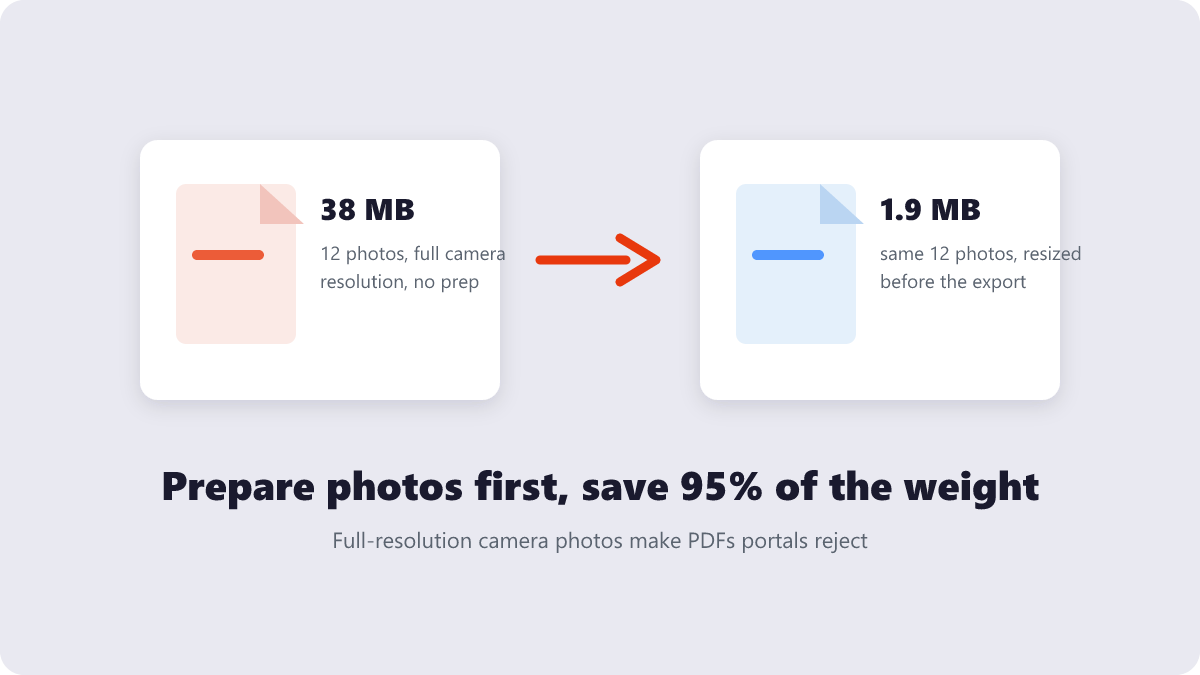
The part other guides skip: a PDF does not compress your photos — it wraps them at their original weight. Twelve phone photos at 12 megapixels each weigh 3–5 MB apiece, a 40+ MB PDF that most portals (commonly capped between 2 and 10 MB) will bounce.
The fix takes one minute and happens before the export:
- Run the photos through the free Compress Image tool first. For screen-reading documents, each photo drops to a fraction of its weight with no visible change at normal zoom.
- Combine the slimmed photos into the PDF.
- Still over the limit? The Compress PDF tool targets the embedded images directly — low, medium or high — while text and layout stay untouched.
One caution: compress once, from the originals, at the setting you need. Re-compressing an already-compressed file is how receipt photos become impressionist art.
Which method should you use?
Honest take: the built-in print trick is a party trick. Brilliant for one or two photos, fully offline — but the moment the job has requirements (order, size, volume), you are mailing a letter through a slot designed for envelopes. There is no prize for suffering through it when a purpose-built tool does the arranging for you.
| Method | Works offline | Page order control | Size control | Best for |
|---|---|---|---|---|
| iPhone print trick | Yes | Tapping order only | None | 1–3 quick photos |
| Android Save as PDF | Yes | Tapping order only | None | Quick shares |
| Desktop PDF printer | Yes | Moderate (via Preview) | Paper size only | Files already on PC |
| Online converter | Needs internet | Drag thumbnails | Full (with prep) | Multi-photo, size-capped jobs |
Your photo-to-PDF questions, answered
How do I turn photos into a PDF without an app?
Use the print dialog built into your device — Share → Print → pinch (iPhone), Print → Save as PDF (Android), or the PDF printers on Windows and Mac. Every method here is free and needs no installation.
Does converting photos to PDF reduce quality?
No. A PDF wraps your images — the pixels stay as they were. Quality only drops if the images get resized or compressed along the way, which is a choice you control.
Why is my photo PDF so large, and how do I make it smaller?
Because the PDF carries your photos at full weight. Compress the photos before exporting, or run the finished PDF through a compression tool — the same pages can drop from 40 MB to under 2 MB.
How do I put photos in a specific order in a PDF?
Select the photos in the order they should appear, or use a converter with draggable thumbnails. Number-prefix renaming (01, 02, 03) is the bulletproof desktop option.
Can I combine photos and documents into the same PDF?
Yes. A PDF is just pages — images and text mix freely. Convert the photos to PDF, then combine them with any other PDF in the Merge PDF tool.
Is it safe to turn personal photos into a PDF online?
It depends on the tool. Browser-based converters process images on your own device, so personal photos never travel anywhere. Cloud services upload the files — reputable ones delete them within an hour — but for IDs, contracts and medical papers, a browser-based tool or your phone’s built-in method is the safer default.
Last updated: September 18, 2026. Every tool mentioned here is free, works in your browser, and needs no account.
