Quick answer
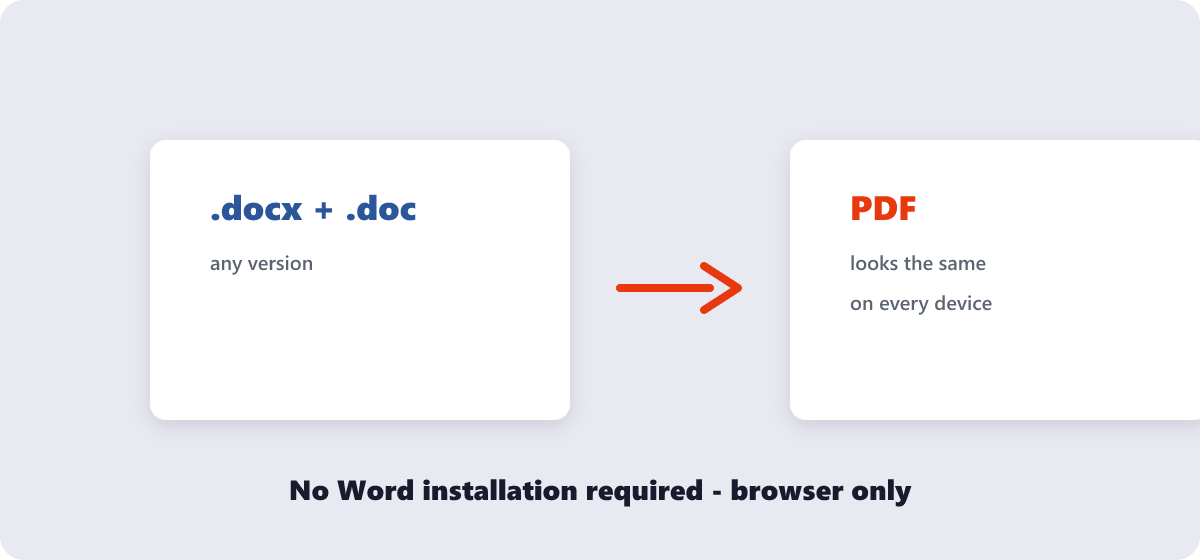
No Microsoft Word needed: open the free Word to PDF tool, drop your .doc or .docx in, and download the PDF with fonts, spacing and layout carried over. Works in any browser — and both Word generations are supported.
“Can you send it as a PDF?” is the sentence that makes people open a laptop they were trying to avoid, hunt for a Word installation that may not exist, or pay for software they need twice a year. None of that is necessary. Converting Word to PDF is a browser task now, and the result is identical to what a desktop export produces — here’s how, plus the two routes that don’t even need a tool.
What’s covered:
- Why “send it as a PDF” is the right request
- Converting with a free online tool
- The Google Docs route
- Doing it from your phone
- What carries over — and what to check
- Word to PDF questions
Why “send it as a PDF” is the right request
A DOCX file is a set of layout instructions, and every device assembles them slightly differently. Send a resume as DOCX and the recruiter’s machine may substitute your fonts, reflow your lines, or open it in an app that renders your two-page CV as 2.5. Send a PDF and every device paints the same fixed pages — which is why application portals, invoicing flows and “official document” requests all standardize on it.
The request is also quietly about tamper-resistance: a PDF is harder to modify accidentally, so what you sent is what gets read. For anything with numbers in it — invoices, quotes, statements — that alone justifies the format.
Converting with a free online tool
- Open the free Word to PDF tool. No signup, no watermark, no Word installation.
- Drop your .doc or .docx file in — both the modern format and the legacy one are supported.
- The converter renders fonts, spacing, tables and images into the PDF layout. Files are transferred over an encrypted connection and deleted from the processing servers within an hour.
- Download the PDF and attach it wherever the request came from.
This is the same job Microsoft Word’s own “Save as PDF” performs — the difference is that it happens without Word. Legacy .doc files from twenty-year-old archives convert too, which matters more often than you’d think: those old files are exactly the ones the current Office can struggle with.
The Google Docs route
If your document already lives in Google Docs — or you are willing to upload it there — the conversion is built in and equally free:
- Open the document in Google Docs (File → Open imports a .docx cleanly).
- File → Download → PDF Document (.pdf).
- The PDF lands in your Downloads folder, layout preserved from Google’s rendering.
The honest caveat: Google’s renderer is not Microsoft’s. Complex documents — precise tables, exotic fonts, carefully kerned layouts — can shift slightly in Google Docs itself before the export. For everyday documents the result is indistinguishable; for pixel-critical work (a CV with tight margins, a designed invoice), converting the original DOCX directly through a dedicated converter preserves the original rendering more faithfully.
Doing it from your phone
The same online tool works in any mobile browser — upload the DOCX from your phone’s storage or cloud drive, and the PDF downloads back to it. For documents received as email attachments, this closes the loop entirely on the phone: download the attachment, convert, forward the PDF. No desktop appears anywhere in the workflow, which is exactly how a growing share of document work happens now.
One phone-specific tip: before converting, open the DOCX once and check that it displays correctly. If a document already renders oddly in your phone’s viewer, the conversion will faithfully preserve that oddness — fix the source first when you can.
What carries over — and what to check
| Element | Conversion behavior | Check it |
|---|---|---|
| Body text & fonts | Rendered and embedded in the PDF | Zoom to 200% — text should stay crisp |
| Tables | Layout preserved | Column widths and page breaks |
| Images | Placed at original resolution | Position relative to text |
| Headers, footers, page numbers | Carried over | Numbering after page breaks |
The one honest limitation of any converter: features that are live in DOCX (tracked changes, comments, animations) have no PDF equivalent, so they are naturally absent from the output. If a document depends on review marks, send the DOCX to collaborators and the PDF to everyone else — the formats serve different stages, as covered in the PDF vs DOCX guide.
And the mirror move is worth bookmarking: when the flow reverses — a PDF arrives that needs editing — the PDF to Word converter turns it back into an editable document, closing the loop in both directions.
Word to PDF questions
How do I convert Word to PDF for free?
Upload the .doc or .docx to a free converter like the Word to PDF tool and download the result. Google Docs’ built-in File → Download → PDF works too. Both are free with no watermark.
Will my document look exactly the same as a PDF?
In almost all cases, yes — fonts, spacing, tables and images render into the fixed PDF layout accurately. Very unusual custom fonts may be substituted, and pixel-critical layouts deserve a quick page-by-page check after conversion.
Can I convert old .doc files, not just .docx?
Yes. Both Word generations are supported — useful for legacy archives, which is precisely where the old format still lives.
Is it safe to convert confidential documents online?
With encrypted transfer and automatic deletion (typically within an hour), upload-based conversion is standard practice. For maximum caution on sensitive files, use a converter that processes locally in the browser instead of uploading.
Do I need Microsoft Word at all after converting?
Not for the conversion — and the recipient never needs it either, since PDFs open everywhere. You only need Word (or Google Docs) if you want to edit the source document again.
Why is my converted PDF larger than the DOCX?
PDF embeds fonts and renders images at full quality rather than referencing them, so the file can grow. If the size matters for an upload limit, run the PDF through the Compress PDF tool afterward.
Last updated: September 19, 2026. The Word to PDF tool here supports .doc and .docx — free, no signup, no watermark.
