Quick answer
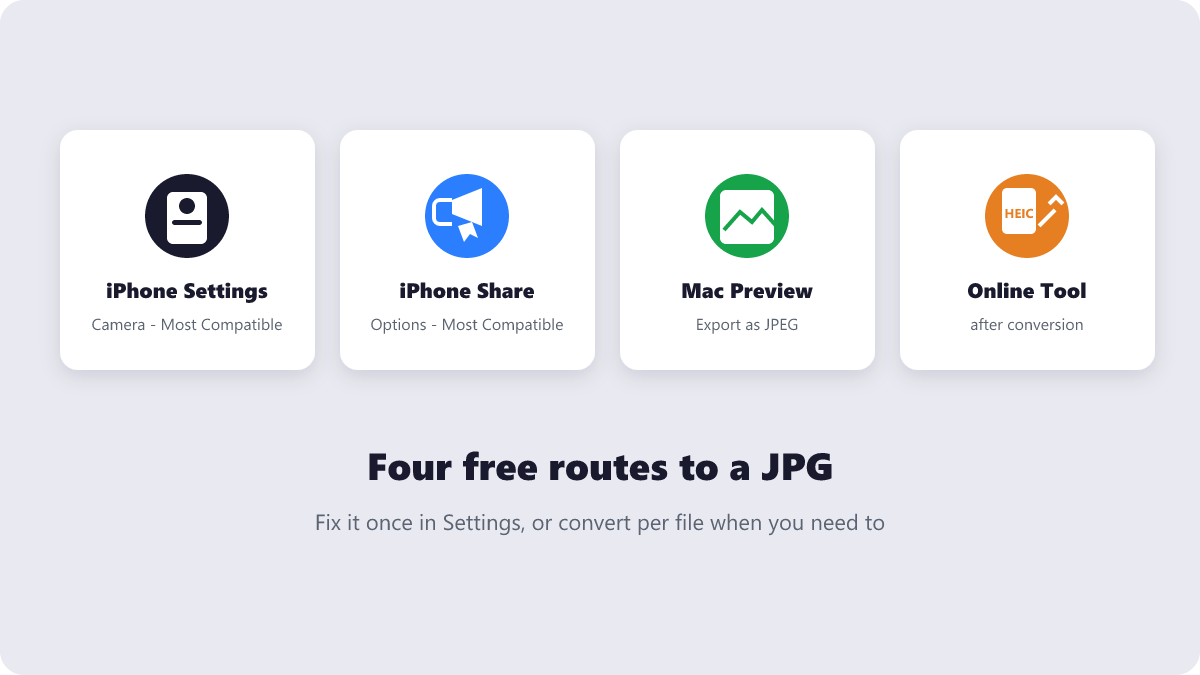
Two-tap fix on iPhone: open the photo, tap Share, tap Options, choose “Most Compatible”, and share — the copy arrives as a JPG. To stop the problem permanently, go to Settings → Camera → Formats → Most Compatible. On Mac, open the file in Preview and export as JPEG. Details for every method below.
You tap Share on a photo, send it to a Windows colleague or a job portal, and the reply comes back: “file won’t open.” Nine times out of ten, that photo is a HEIC — Apple’s modern image format that saves space beautifully and breaks compatibility just as beautifully. Here’s why it happens and every free way to convert HEIC to JPG, from a two-tap iPhone fix to desktop methods.
What’s covered:
- What is HEIC, and why does your iPhone use it?
- Why portals and Windows PCs reject HEIC files
- The permanent iPhone fix: switch your camera to JPG
- Converting one file without changing any settings
- Converting on Mac and Windows
- When you should NOT convert
- HEIC to JPG: your questions
What is HEIC, and why does your iPhone use it?
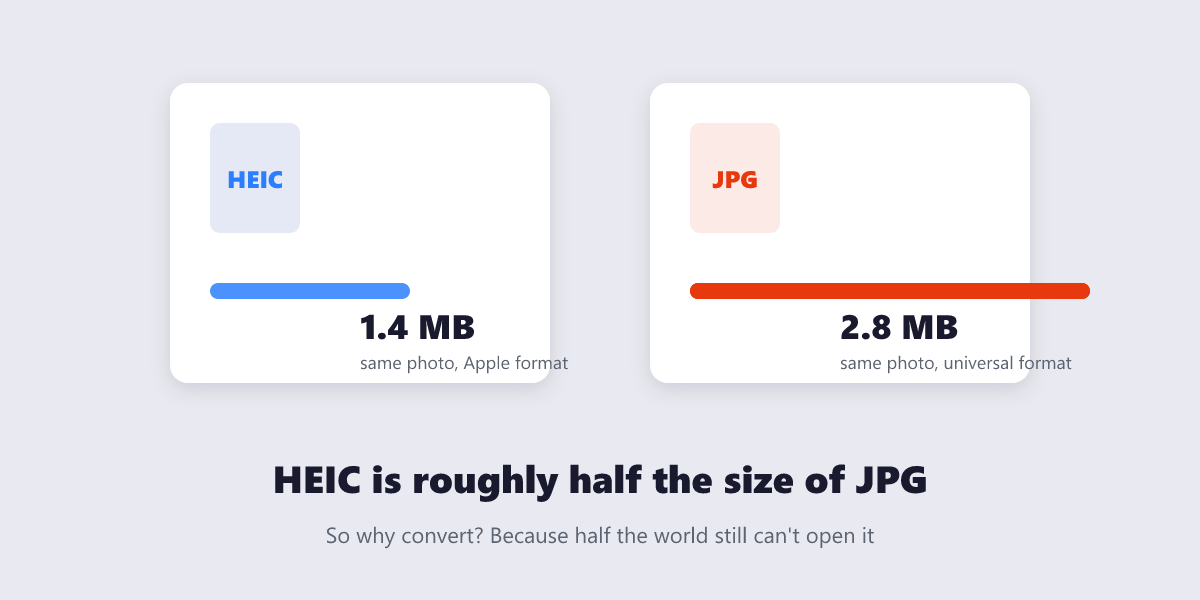
HEIC (High Efficiency Image Container) is an image format built on the MPEG standard — the same organization behind the video codecs in your streaming apps. Apple made it the default photo format on the iPhone starting with iOS 11 in 2017, and the pitch was simple: a HEIC photo takes roughly half the storage of the same picture saved as JPEG, at comparable quality. On a 128 GB phone full of 12-megapixel photos, that is the difference between “storage almost full” warnings and not seeing them.
It is, genuinely, the better format — smaller files, better color handling, and the ability to store bursts and edits inside one container. The catch is everywhere else.
Why portals and Windows PCs reject HEIC files
HEIC support has spread slowly and unevenly, and the failures are real-world, not theoretical:
| Where the file goes | HEIC accepted? | Reality |
|---|---|---|
| Windows 10 / 11 | Partly | Needs the HEIF Image Extensions; the required HEVC codec historically cost money |
| Job / university portals | Often no | Most accept JPG/PNG/PDF lists only — HEIC uploads bounce |
| Photoshop | Limited | Works at 8-bit color depth only |
| Discord and many apps | No | Refuse the format outright; Facebook silently converts uploads to JPEG |
| Android (8+) | Varies | Modern versions decode HEIF, but sharing apps often do not |
The cautionary tale: in 2020, US students taking the AP exams had to submit photos of their handwritten work — and uploads failed en masse because iPhones had saved them as HEIC. The College Board had to tell students to re-shoot in JPG. One format mismatch nearly derailed a national exam cycle.
The permanent iPhone fix: switch your camera to JPG
If you regularly send photos outside the Apple bubble — uploads, forms, Windows colleagues — flip one setting and the problem never returns:
- Open Settings → Camera → Formats.
- Choose Most Compatible instead of High Efficiency.
From this moment, the Camera app saves every new photo as JPG. The trade-off is real but modest: photos take up more space, roughly double per shot, so heavy shooters with small-storage phones should read the next section instead and convert per file as needed.
Converting one file without changing any settings
Already have a HEIC and need a JPG of it right now? iOS converts on the way out:
- Open the photo in Photos and tap Share.
- Tap Options at the top of the share sheet.
- Under Format, choose Most Compatible, then tap Done.
- Share or save it — the delivered copy is a JPG. The original in your library stays HEIC.
This is the method to remember: it converts only the copy you send, your library keeps its space savings, and nothing is installed or subscribed to.
Converting on Mac and Windows
Mac: right-click the HEIC file → Open With → Preview → File → Export → set format to JPEG and save. On macOS Monterey and later it is even faster: right-click the file and use Quick Actions → Convert Image, pick JPEG, done — no app window needed.
Windows: Windows 10 (1803+) and 11 can decode HEIC, but Windows 10 historically required two extensions from the Microsoft Store — the HEIF Image Extensions plus a paid HEVC codec — which is why so many Windows users see “file format not supported”. If installing codec packs is not your idea of fun, the shortest path is converting the file on the iPhone that shot it (previous section) or asking the sender to.
Once your files are JPG, everything downstream gets easier — compressing them for portals with the Compress Image tool, bundling them into applications with Image to PDF, or converting between other formats with Convert Image.
When you should NOT convert
Converting to JPG trades away HEIC’s advantages, so convert selectively:
- Keep HEIC for your photo library, especially on a smaller-storage phone — the space saving is the entire point.
- Keep HEIC when files stay inside the Apple ecosystem (AirDrop, iCloud Photos, iMessage) — everything decodes natively.
- Convert to JPG when a file leaves for the web: portals, Windows recipients, forms, printing services, and messaging apps with picky uploaders.
Think of HEIC as your archive format and JPG as your delivery format. My honest opinion after watching this format war from the tooling side: HEIC won the engineering argument and lost the compatibility argument, and until portals catch up, “Most Compatible” is the setting that pays for itself the first time a deadline upload actually goes through.
HEIC to JPG: your questions
How do I convert HEIC to JPG without losing quality?
Use the iPhone’s built-in Share → Options → Most Compatible flow, or Preview’s Export on Mac. These re-encode once, at high quality, from the original — quality loss is invisible in practice. Avoid re-saving a JPG repeatedly, which compounds lossy compression.
Why did my iPhone photo upload fail on a website?
The site almost certainly accepts only JPG, PNG or PDF, and your photo is HEIC. Convert the file using the Share → Options method above, or flip your camera to Most Compatible and retake the shot.
Is HEIC better than JPG?
Technically yes — roughly half the file size at comparable quality, plus better handling of edits and bursts. Practically it depends on where the file is going: HEIC inside the Apple ecosystem, JPG everywhere else.
Will converting HEIC to JPG increase the file size?
Yes — typically to about double, because JPG’s compression is less efficient. That is the trade for universal compatibility. If the JPG then exceeds an upload limit, run it through an image compression tool before uploading.
Can Windows open HEIC files without converting?
Windows 10 (version 1803+) and 11 can, but Windows 10 needs the HEIF Image Extensions and the HEVC codec from the Microsoft Store — and the codec has historically been paid. This is exactly why Windows recipients keep asking for JPGs.
Does converting HEIC to JPG delete the original?
No. The iPhone’s share-sheet method and Mac’s Export both create a new JPG copy while the original HEIC stays untouched in your library or folder. You only lose the original if you manually delete it.
Last updated: September 19, 2026. Every method here is free and built into your devices — no converter subscriptions required.
