Quick answer
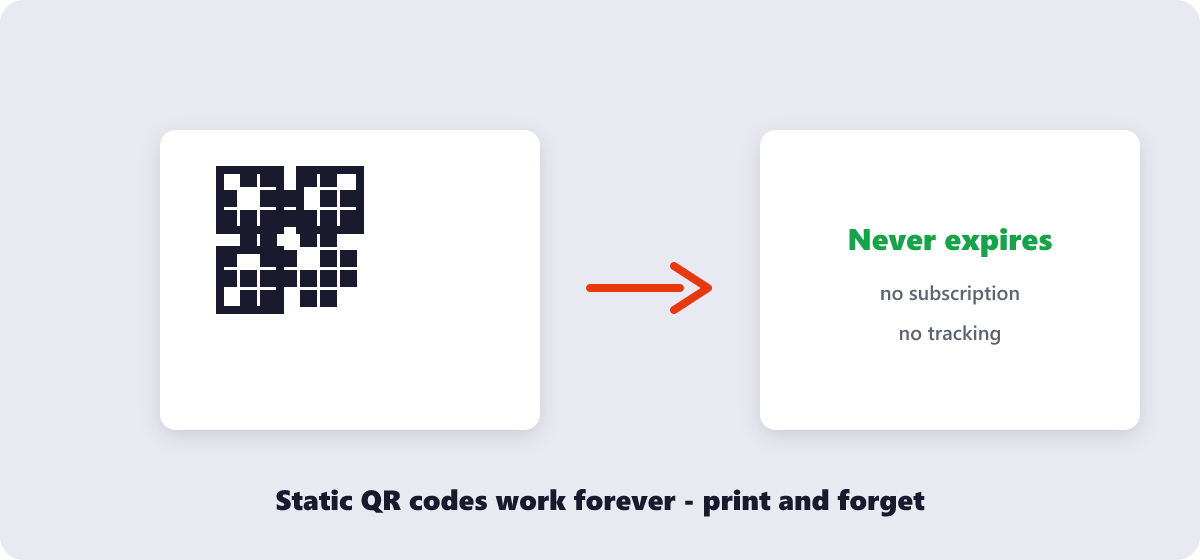
Free, permanent, no middleman: open the free QR Code Generator, type your link or text, and download the code as a print-ready PNG. Because it is a static QR code generated on your device, it works forever — no service holding it hostage, no subscription expiring mid-campaign.
Every restaurant menu, product box and business card sprouted a QR code over the last few years — and a small industry grew around renting them to you. The part nobody mentions: a basic QR code costs nothing, takes ten seconds, and never expires. The paid services are selling you extras (tracking, editable destinations), not the code itself. Here is how to make one properly, and how to decide whether you need the extras at all.
What’s covered:
- How a QR code actually works (why some expire)
- Making your code in ten seconds
- What you can put inside a QR code
- Print rules: size, contrast and scannability
- Static vs dynamic: when to pay, when not to
- QR code questions
How a QR code actually works (why some expire)
A QR code is just text written in a scannable font of squares. Scan it, and your phone reads the text — usually a URL — and acts on it. That is the whole mechanism, which leads to the two species of QR code:
- Static: the destination is encoded directly in the squares. Your menu’s URL lives in the pattern. It works offline, forever, even if the generator that made it disappears. Nothing to renew, nothing to break.
- Dynamic: the squares encode a redirect — a short link owned by the QR service, which forwards to your real destination. This is how “edit your QR code later” and scan-analytics work, and it is also why dynamic codes die when the subscription lapses: the redirect is the product you are renting.
My honest opinion: dynamic codes are worth paying for in exactly one situation — printed materials where the destination must change after printing (a restaurant menu whose content updates seasonally is the classic case). For business cards, packaging, invoices, event posters and a thousand other uses, a static code is superior precisely because nothing can ever break it.
Making your code in ten seconds
- Open the free QR Code Generator — no account, no watermark, no limit.
- Type or paste the link, text, phone number or Wi-Fi details to encode. The code renders instantly as you type.
- Download the PNG — sharp edges at any size, which is what makes codes scan reliably.
- Print it or embed it. It will outlive the website it points to.
Everything is generated on your device — the content you encode is never sent anywhere, which also means there is no scan-tracking and no data collection attached to the code.
What you can put inside a QR code
| Content | What the phone does | Business use |
|---|---|---|
| Website URL | Opens the browser | Menus, landing pages, product info |
| Plain text | Displays it | Wi-Fi passwords, serial numbers, instructions |
| Phone number | Opens the dialer | Flyers, storefronts, support cards |
| Email address | Opens the composer | Contact cards, quote requests |
Print rules: size, contrast and scannability
Ninety percent of “my QR code doesn’t scan” failures come from three physical mistakes, all avoidable:
- Size. A code printed smaller than roughly 2 × 2 cm frustrates phone cameras. Business-card codes are the usual offenders — size the code to the distance it will be scanned from (the honest rule of thumb: scan distance divided by 10).
- Contrast. Dark squares on a light background is the reliable combination. Reversed codes (light on dark) and brand-recolored codes fail at noticeable rates.
- Quiet zone. The empty margin around the code is not decoration — scanners need it to find the code’s edges. Never let text, borders or images crowd against it.
And one testing habit worth stealing from professional print work: scan the final printed piece with two different phones before running the batch. The screen preview always scans; the paper version is the one that counts.
Static vs dynamic: when to pay, when not to
| Need | Right choice | Why |
|---|---|---|
| Destination never changes | Static (free) | Nothing to expire, ever |
| Destination must change after printing | Dynamic (paid) | Redirect can be edited — the rental you’re actually paying for |
| Scan counting and analytics | Dynamic (paid) | Static codes carry no tracking |
| “It must never break” | Static (free) | No service can lapse and kill it |
The failure mode to design around is real: businesses have printed thousands of dynamic-code package labels, watched the QR subscription lapse, and shipped unscannable packaging for months. A static code cannot suffer that fate — the worst thing that can happen to it is that your website itself moves, which is a website problem, not a QR problem.
QR code questions
How do I create a QR code for free?
Use a static generator: type your link or text, download the PNG. No signup, no watermark, no expiry — the free QR Code Generator here works exactly this way.
Do QR codes expire?
Static ones never do — the destination is baked into the pattern itself. Dynamic codes expire when the subscription behind their redirect lapses, which is the difference between the two species.
Are free QR codes safe for customers to scan?
A static code from a local generator contains only the text you encoded — there is no third-party redirect, no tracking layer, no subscription link that could someday point somewhere else.
What size should a printed QR code be?
At least 2 × 2 cm for close scanning, and scale up with distance — roughly scan distance divided by 10. A poster scanned from 3 meters wants a code around 30 cm wide.
Can I make a QR code for my Wi-Fi network?
Yes — encode the network name and password in the standard Wi-Fi format, and guests can join by scanning instead of typing a 24-character password. Keep the printout somewhere physical rather than public.
Do QR codes work without internet?
The scan itself does — the pattern is read by the camera locally. Whether anything useful happens next depends on the content: a URL needs internet to load, but plain text and phone numbers work fully offline.
Last updated: September 19, 2026. The QR Code Generator here makes static codes — free, no watermark, generated entirely on your device.
