Choose a compression level and get a smaller file that still looks the way you intended — ready to email or upload anywhere with a size limit.
or drop files here
Pick how aggressively you want to shrink your document, and the tool trims the bulk out of heavy images while keeping every page looking right.
Bring in your PDF — drop it on the page or click Choose Files to browse.
Select a compression level: low for near-original quality, high for the smallest possible file.
Start the compression — heavy images get slimmed down while text and vector art pass through untouched.
Compare the before-and-after size and download the lighter PDF.
Three levels of control, local processing, and text that stays selectable — nothing forced, nothing uploaded.
Choose low, medium, or high compression to balance file size against visual quality for your specific use case.
Compression runs locally in your browser, so your PDF is never sent to a server.
Perfect for portals and email attachments that cap file size, like application forms or exam submissions.
Compression targets embedded images first, so text and vector graphics stay crisp and readable.
No account, watermark, or daily limit. Compress as many PDFs as you need.
Pick a lower compression level — this tool reduces file size mainly by optimizing embedded images while keeping text and layout untouched.
Large PDFs are almost always caused by high-resolution images or scanned pages. Text-only PDFs are typically already small.
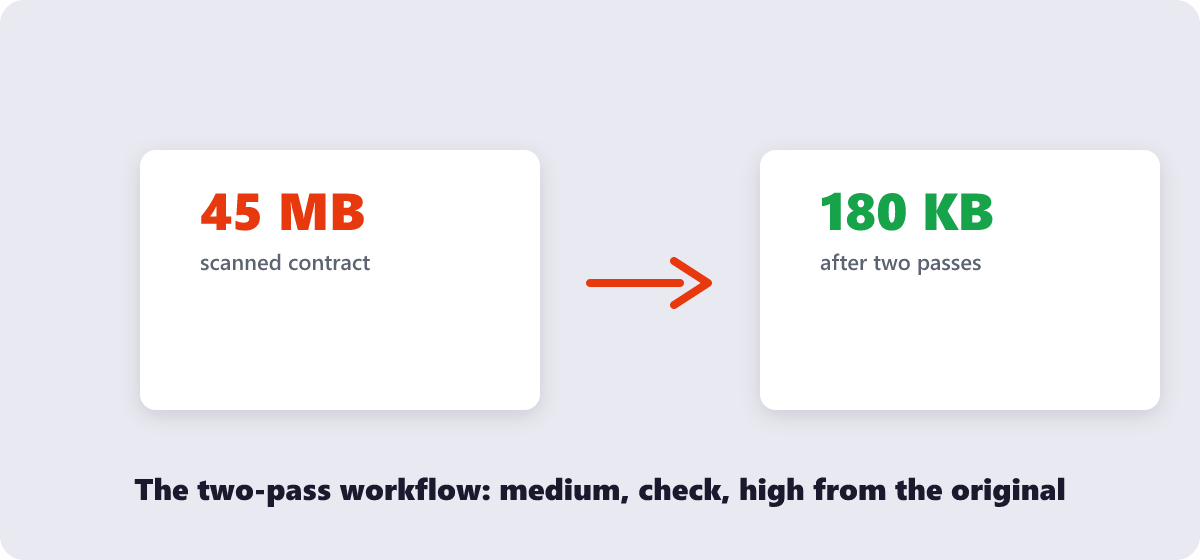
Try the higher compression setting first, then check the result. Compression outcomes vary by content, so it may take a try or two to hit an exact target.
Yes. Everything happens in your browser — your file never leaves your device during compression.
No. Compression reduces file size without removing text layers, so your PDF stays searchable and selectable.
Scanned PDFs usually shrink more, since they're mostly images — exactly what compression targets.
Compress PDF complete